Why a Sales Spreadsheet Breaks at 5,000 Rows
A sales spreadsheet does not stop at 5,000 rows, but your team does. Why big contact sheets get hard to manage, the warning signs, and how to move to a CRM.

Table of Contents
- 5,000 rows is not a hard limit
- A spreadsheet is still a good tool
- Our own story: outreach from a spreadsheet
- Five daily jobs that get hard past 5,000 rows
- 1. Finding one person and everything about them
- 2. Knowing who to follow up with today
- 3. Making a list of chosen contacts
- 4. Seeing who spoke to this person last
- 5. Adding one detail for one person
- What goes wrong in a big shared sheet
- How Entayo CRM keeps mistakes small
- One history per person, from every app
- When to stay on the spreadsheet
- How to move a 5,000-row sheet without losing a row
- So where is your limit?
- Resources
TL;DR
- 5,000 rows is a rule of thumb, not a software limit. Excel and Google Sheets hold far more; people stop coping long before the file does.
- The sheet gets hard in five daily jobs: finding one person, today's follow-ups, building a list, knowing who spoke to them last, and sharing only part of the data.
- Shared sheets add risk as they grow: two people typing in one cell, a row deleted by mistake, a note on the wrong person, the same person twice.
- A CRM makes the record the unit: search, one click to the person, an activity history, a follow-up reminder by email, and lists shared with chosen teammates only.
- Move without losing a row: keep a copy of the sheet, import or paste it, map columns, pick a duplicate rule, check every row arrived, then work in the CRM only.
Your sales spreadsheet will not crash at row 5,001. It will just get slower to use, every day, until finding one person, checking today’s follow-ups or making a list takes longer than the call itself. If you are already there, you can move your sheet into Entayo CRM today: import it or paste it, and every contact gets a record, an activity history and a follow-up reminder.
This article is for solo founders, sales teams and individual contributors who keep their people and connection records in a spreadsheet. It explains why “5,000 rows” is the point where many of them start to struggle, what actually goes wrong, and how to move without losing a single row.
5,000 rows is not a hard limit
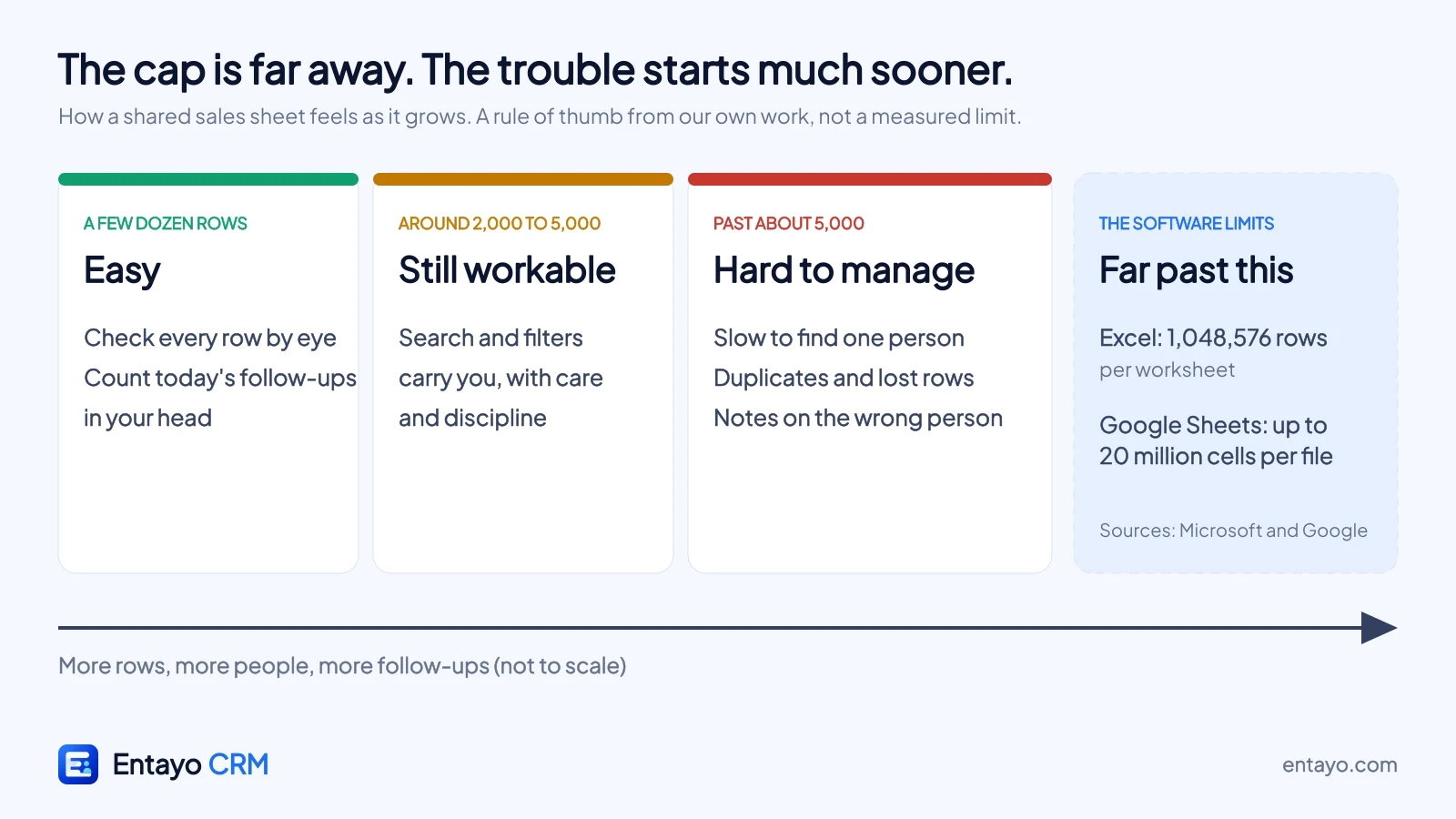
No spreadsheet stops at 5,000 rows. You can keep adding data. Microsoft Excel holds 1,048,576 rows per worksheet, and Google Sheets holds up to 20 million cells per spreadsheet (see Resources below). Some people run their contacts in a sheet with 10,000 or 20,000 rows.
So when we say a sales spreadsheet “breaks” at 5,000 rows, we do not mean the file. We mean the work around it. Once the data gets large, it becomes very difficult to manage. 5,000 is our generalised rule of thumb, from running our own outreach in a sheet. For some teams the trouble starts at 2,000; for others at 10,000. The number moves. The pattern does not.
A spreadsheet is still a good tool
This is not a “spreadsheets are bad” article. Most of the time, a spreadsheet is useful:
- Everything is in one place. Every person you track sits in one file.
- Adding data is easy. Type a new row whenever you like.
- It holds a lot. You can keep many records, with as many columns as you want.
- Teams can share it. Two or more people can work in the same sheet at the same time.
With a limited amount of data, roughly 2,000 to 5,000 rows, a spreadsheet is still easy enough to manage with search and filters. The trouble is what happens as the rows, the columns and the people editing them all grow together.
Our own story: outreach from a spreadsheet
We learned this the hard way. Our own company ran its outreach from a spreadsheet: people, companies, who we had contacted and who we had emailed about our product launches.
The work was manual. Someone from marketing picked a person from the sheet, contacted them, then went back and added a tick in the sheet. With 50 or 100 records, that was fine. You could see how many people you had contacted and how many you had to follow up with tomorrow.
As the list grew, it stopped being fine. Finding the next person, knowing who a teammate had already contacted, and remembering tomorrow’s follow-ups all took longer every week. So we built Entayo CRM: instead of ticks and scrolling, you log the contact on the person’s record, a follow-up reminder arrives by itself, and anyone who spots an important detail can add it to that person.
Five daily jobs that get hard past 5,000 rows
Picture 5,000 or 6,000 records in a sheet you share with a teammate. These are the jobs that slow down first.
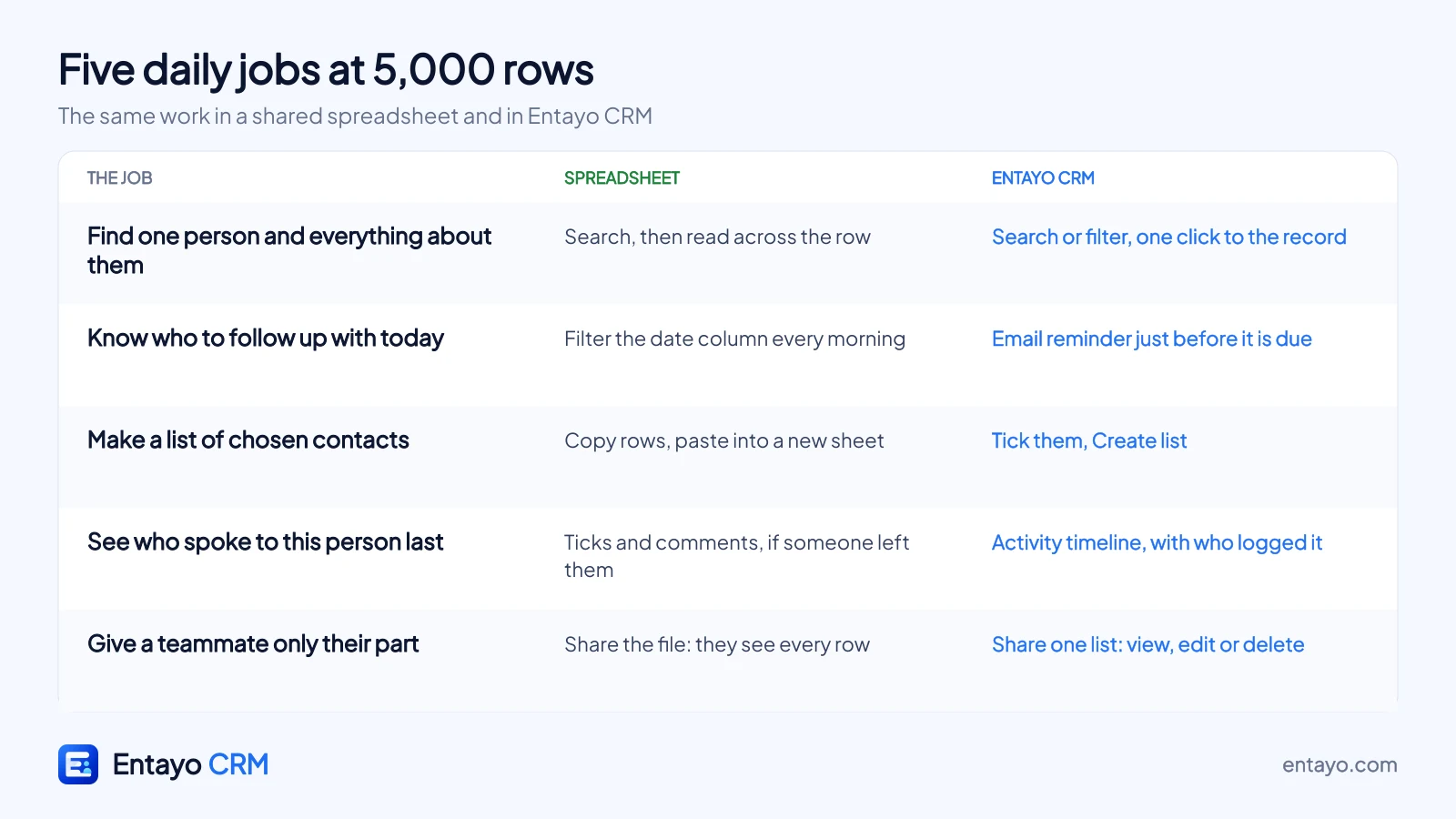
| Daily job | In a spreadsheet | In Entayo CRM |
|---|---|---|
| Find one person and everything about them | Search, then read across the row | Search or filter, one click to the record and its activity |
| Know who to follow up with today | Filter the date column every morning | Email reminder a couple of minutes before it is due |
| Make a list of chosen contacts | Copy rows, paste them into a new sheet | Tick the records, press Create list |
| See who spoke to this person last | A tick or a comment, if someone left one | Activity timeline, with who logged each entry |
| Add one detail for one person | A new column for everyone, mostly blank | Hide the column in lists where it does not belong |
1. Finding one person and everything about them
In a sheet, you search for the name, land on the row, then read across dozens of columns to find what you need. With thousands of rows, search returns several matches and you check each one.
In Entayo CRM, every person and company sits in Master Data, one row per record, so it still feels familiar. Search or filter, click the row, and you see that person’s details and their whole activity in one place.
2. Knowing who to follow up with today
In a sheet, you keep a follow-up date in a column. Then, every single day, you search or filter that column to see who you are contacting today, and read the row again to remember why.
In Entayo CRM, you set a follow-up date and time on the person, in plain words like “Tue 5pm” or “tomorrow 10:30am”. The CRM emails you a couple of minutes before it is due. A follow-up with no time gets its reminder at 9 AM that day. You stop searching for today’s work; it comes to you.
3. Making a list of chosen contacts
Say you want a separate list of 200 people for one campaign. In a sheet, you select the rows, copy them, paste them into a new sheet, and now the same people live in two files that drift apart.
In Entayo CRM, you tick the records you want (or Select all that match your filters) and press Create list, right there. The list holds the same records, not copies, so an update made in one place shows everywhere.
4. Seeing who spoke to this person last
In a sheet, history is a tick, a cell comment, or nothing. Did you talk to this person? Did a teammate?
In Entayo CRM, every call, email, meeting and message is logged on the person’s activity timeline, with who logged it. More on what fills that timeline by itself below.
5. Adding one detail for one person
In a sheet, a detail that matters for one person, say their budget, needs a whole new column for everyone, blank on almost every row.
In Entayo CRM, a column you add to people can be hidden in the lists where it does not belong, and extra columns from an imported sheet can stay as extra data on just the records that carry them. One prospect’s detail does not clutter everyone else’s view.
What goes wrong in a big shared sheet
Size alone is a nuisance. Size plus several editors is a risk. Past about 5,000 rows, these are the things that go wrong:
- Two people, one cell. You are typing in a cell, and a teammate types in the same cell at the same moment. One value quietly replaces the other.
- A row deleted by mistake. You never meant to delete that record, but someone did, and it is gone from the working sheet. Google Sheets keeps a version history you can restore, but only if somebody notices, and restoring a version undoes everything changed after it.
- The right note on the wrong person. You wanted to add something for one person, and a teammate added it to the row above.
- The same person twice. Two rows, two spellings, two people chasing one lead.
- Everyone sees everything. Sharing the sheet gives your teammate every row and every column, not just the part they work on.
We will not pretend a CRM makes mistakes impossible. People still make them. What a CRM changes is how far a mistake can spread.
How Entayo CRM keeps mistakes small
Entayo CRM is built around the person who owns the data:
- Your data is yours by default. Records in your workspace are not one big shared pool.
- Share only what you choose. Add team members in your Zocton workspace, then share one list or segment with a teammate and choose their access: no access, view, edit, or edit and delete. They see that list, and contacts assigned to them, nothing else.
- Deleting needs permission. A teammate with view or edit access cannot delete records. Even with delete access, the CRM asks before it deletes.
- Duplicates are caught at the door. Imports check for duplicates by email, by name and company, or by a field you pick.
- Daily backups. Your Zocton workspace keeps a daily backup of your CRM that you can download.
Instead of handing over the whole spreadsheet, you decide who sees which data, and who can change it.
One history per person, from every app
A spreadsheet only knows what someone types into it. Entayo CRM also fills a person’s activity timeline from the other apps in your Zocton workspace:
- ZuvoChat, website chat: when a person messages you, their chats and chat summaries are filed as activity on their record.
- TraceFlow, website visitor tracking: once a visitor leaves their email address, they become a person in the CRM, and each finished visit to your website, with the pages they saw, is added to their activity.
- TurboWorkflow, email campaigns and workflows: build a list in Entayo CRM, send emails to it from TurboWorkflow, and every email sent is logged on each person, with the campaign it came from.
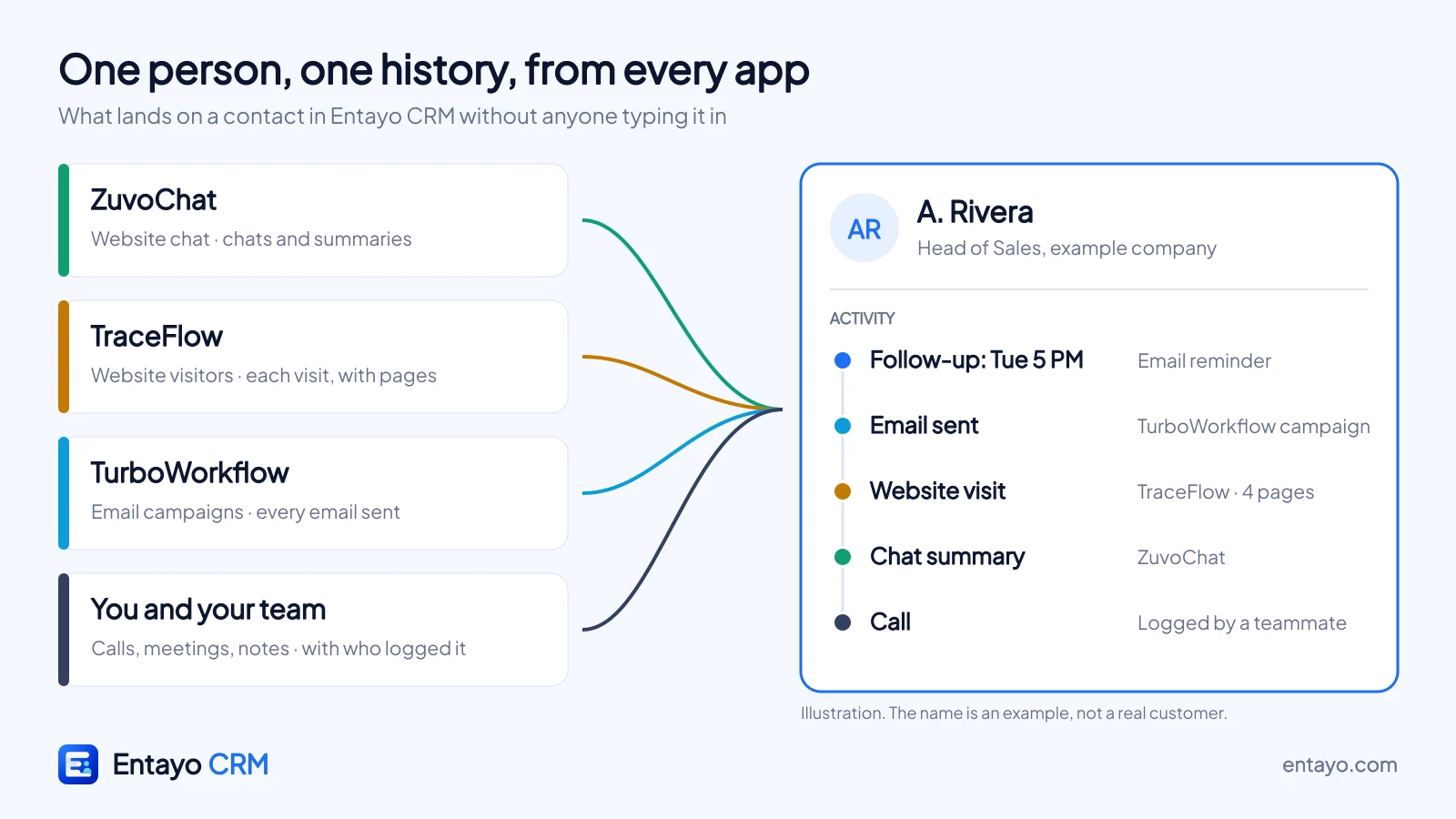
So when you open a person, you see the chat they started, the pages they read, the email they received and the call your teammate logged, in one place, in order. No spreadsheet does that by itself. See how the integrations work, or send email campaigns to a CRM list.
When to stay on the spreadsheet
Be honest with yourself about where you are:
- Stay on the sheet if you have a few dozen to a few thousand rows, you can still find today’s follow-ups quickly, and nobody has overwritten anybody else’s work.
- Move to a CRM when the record count passes the point where you can manage it, typically somewhere past 2,000 to 5,000 rows, or as soon as you see lost rows, duplicates or notes on the wrong person.
If you are still deciding, our guide to using Google Sheets as a CRM shows how to set up a sheet properly and how far it honestly goes.
How to move a 5,000-row sheet without losing a row
Moving is easier than most people expect. There are two ways in: import the spreadsheet file directly, or copy the rows as CSV and paste them into the importer. Either way, every row becomes a record with its columns.
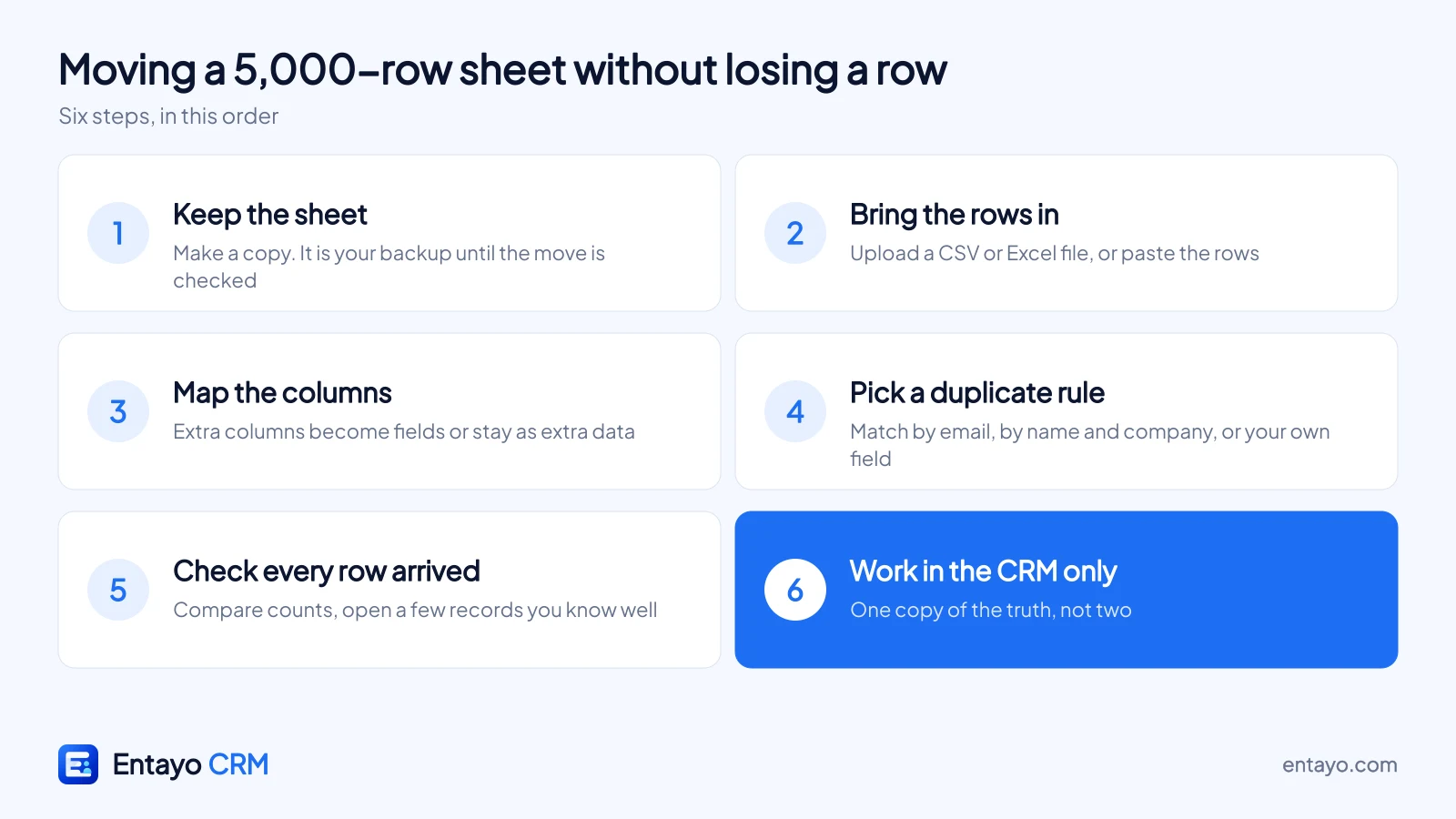
- Keep the sheet. Make a copy. It is your backup until the move is complete and checked.
- Bring the rows in. Upload a CSV or Excel file, or select the rows, copy them, and paste them in.
- Map the columns. Match each column to a field. Extra columns can become real fields you can filter on, or stay as extra data on the records that have them.
- Pick a duplicate rule. Match by email, by name and company, or by a field you choose.
- Check every row arrived. Compare the counts and open a few records you know well.
- Work in the CRM only. Once the data is checked, stop editing the sheet. Two copies soon become two versions of the truth.
The import guide walks through each screen.
So where is your limit?
A sales spreadsheet does not break at 5,000 rows because the software gives up. It breaks because people do: finding one person takes too long, follow-ups slip, lists get copied into new sheets, and a shared file lets one mistake reach everyone’s data. The exact number is yours to find, at 2,000, 5,000 or 10,000 rows.
When you find it, move your people and company records into a CRM. Adding, searching, filtering, emailing, calling and following up all get easier when every person is a record with a history, not a row in a file.
Browse every Entayo CRM feature, see how the integrations work, or read the import guide before you move.
Resources
Frequently asked questions
How many rows can a spreadsheet handle?
Far more than a sales team can manage by hand. Microsoft Excel allows 1,048,576 rows per worksheet, and Google Sheets allows up to 20 million cells per spreadsheet. A contact sheet usually gets hard to work with long before either limit, somewhere in the thousands of rows.
Does a sales spreadsheet really break at 5,000 rows?
Not technically. 5,000 is a rule of thumb from our own work. Some teams cope with 10,000 or 20,000 rows, others struggle at 2,000. What breaks is finding people, tracking follow-ups and sharing safely, not the file itself.
What are the signs I have outgrown my sales spreadsheet?
You search the sheet every morning for today's follow-ups, you copy rows into new sheets to make lists, the same person appears twice, notes end up on the wrong person, rows disappear and nobody knows why, or you cannot share part of the data without sharing all of it.
Is a spreadsheet still fine for a small team?
Yes. With a few dozen to a few thousand rows, a spreadsheet is a good way to track people in one place, and it is very good at several people editing at once. It gets risky as the rows and the number of editors grow together.
How does Entayo CRM remind me about follow-ups?
Set a follow-up date and time on a contact, in plain words like "Tue 5pm", and Entayo CRM emails you a couple of minutes before it is due. A follow-up with a date and no time gets its reminder at 9 AM that day.
Can I share only some contacts with a teammate?
Yes. Add teammates in your Zocton workspace, then share one list or segment with a teammate and pick their access: no access, view, edit, or edit and delete. They see that list and contacts assigned to them, not the rest of your data.
How do I make a list of chosen contacts without copying rows?
In Entayo CRM, tick the people you want, or select every record that matches your search and filters, then press Create list. The list points at the same records instead of copying them, so an edit made in one place shows everywhere, and the list can be used for an email campaign in TurboWorkflow.
Should I keep the spreadsheet after moving to a CRM?
Keep it as a backup until the import is complete and checked. After that, work in the CRM only, because the same record in two places soon means two versions of the truth.